How to transfer photos from a Samsung Galaxy to a Mac (2026)
Samsung's support page still says to install Android File Transfer, which no longer exists. Here is what actually works for Galaxy photos on a Mac.
Updated 19 September 2026
Short answer: plug the Galaxy in, choose Transferring images on the phone, and use the Mac’s built-in Image Capture — that works for camera-roll photos and costs nothing. If you also want WhatsApp media, months instead of a flat list, and verified copies before you delete anything from the phone, use RollFerry. Smart Switch is for backups and moving to a new phone, not for pulling photos onto a Mac.
Why this is harder than it should be
A Mac has never understood the file-transfer protocol Android phones use over USB. For years the fix was Google’s Android File Transfer; Google discontinued it in 2024. Samsung’s own troubleshooting page for “failed to connect the phone to a Mac” still tells you to uninstall Smart Switch and install Android File Transfer — which you can’t. Galaxy owners have been posting that exact dead end on Samsung’s community forum this month.
So here’s what does work, in order of effort.
Method 1 — Image Capture (built in, free)
Every Mac has Image Capture in Applications → Utilities. It talks to cameras, and a Galaxy can present itself as one.
- Connect the Galaxy with a data cable. Unlock it.
- Pull down the notification shade. Tap the USB notification and choose Transferring images. (If you choose Transferring files, Image Capture won’t see the phone.)
- Open Image Capture. The phone appears on the left.
- Choose an import folder at the bottom, select photos, click Import (or Import All).
Good: free, nothing to install, works on every Galaxy from the last decade.
Limits: Transferring images exposes only the camera folder (DCIM), so WhatsApp images, screenshots and downloads don’t appear. Everything shows as one long list, no months. It won’t verify what it copied, and its “Delete after import” removes originals without checking the copy. If Photos.app opens itself when you plug in, quit it — it holds the phone.
Method 2 — Samsung Smart Switch (free, but not for this)
Smart Switch for Mac exists and is still updated. It’s a backup and migration tool: it makes a full backup of the phone to your Mac and restores it to a new Galaxy. You can’t browse the backup as folders of photos, and it doesn’t do “give me July’s pictures.” If you want a complete backup before wiping a phone, use it; if you want your photos as files, it’s the wrong tool. It’s also the app whose “Failed to connect the device” error sends people to the dead Android File Transfer page.
Method 3 — Google Photos in the browser (free-ish)
If your Galaxy backs up to Google Photos, you can select and download from photos.google.com on the Mac. It works for a few dozen photos. For hundreds, you’ll hit the selection limits and the zip files; for full-quality originals you need the Original quality setting and enough Google One storage; and the free 15 GB is shared with Gmail, which is why many people’s backup silently stopped months ago. Check the Google Photos app on the phone for “Backup off” before assuming anything’s in the cloud.
Method 4 — RollFerry (paid, made for this)
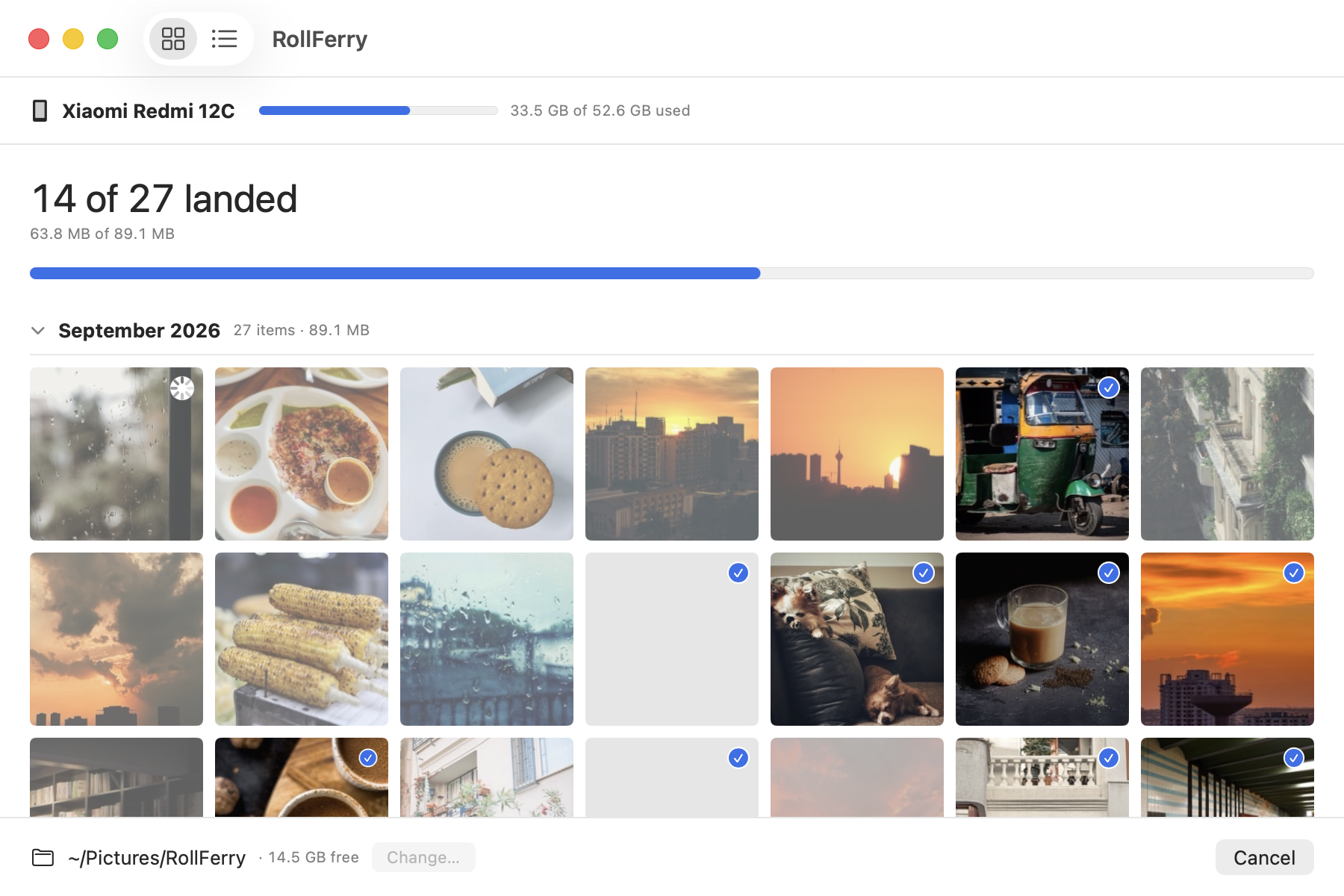
RollFerry is a Mac app for one job: getting photos and videos off an Android phone onto your Mac or an external drive, over a cable, with every copy verified before you delete anything from the phone.
- Connect the Galaxy and choose Transferring files on the phone (the opposite of Image Capture).
- RollFerry reads the phone — a few seconds — and shows only the photos and videos that aren’t already on your Mac, grouped by month with thumbnails. Filter to Camera, Screenshots or WhatsApp.
- Pick a month, a range, or everything, and press Start crossing. Each file is copied and checked byte for byte. Pull the cable halfway and it picks up where it stopped.
- When it’s done, RollFerry can free space on the phone — but it will only offer to delete photos it has verified on your Mac.
Good: months and thumbnails; sees WhatsApp media; remembers what’s already landed so next time you only see new photos; verified copies; resumes after an unplug; works offline, no account.
Limits: photos and videos only. $29 once. Tested on OnePlus and Xiaomi; Galaxy phones speak the same protocol, and if yours does anything odd, email — every reported phone gets a fix or a straight answer.
Which method?
| You want… | Use |
|---|---|
| Camera photos, not many, free | Image Capture (Transferring images) |
| A full backup before switching phones | Smart Switch |
| A few photos already in Google Photos | photos.google.com |
| WhatsApp too, by month, verified before deleting | RollFerry |
Two Galaxy-specific things
The USB mode resets. Every time you plug in, a Galaxy goes back to charging only. Pull down the shade and choose the mode you need — Transferring images for Image Capture, Transferring files for RollFerry or OpenMTP.
Where Galaxy photos live. Camera photos are in DCIM/Camera; screenshots in DCIM/Screenshots; WhatsApp images in Android/media/com.whatsapp/WhatsApp/Media/WhatsApp Images on recent Galaxies (older ones use WhatsApp/Media). If you ever browse the phone by folder, that’s where to look.